
Quick Tip: Viewing Inactive Students
This week, we are going to talk about how to view a student鈥檚 Canvas data after a student is no longer enrolled in your course.
The Academic Engagement Verification Roster and Midterm Grade workflows ask for specific information about students that you might not remember, such as the last time work was submitted or when they last logged in. Students who have been de-registered or drop a course are listed as Inactive and will be hidden from your gradebook.
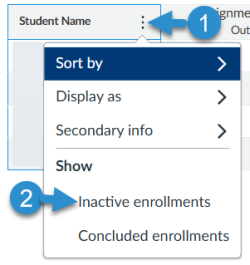
Putting those students back in your gradebook can be done in two easy steps. Go to the gradebook and click the ellipsis in the Student Name column header. Scroll down and click Inactive enrollments.
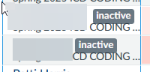
The students that have been de-registered or who have dropped the course will show an inactive tag next to their name in Grades.
The inactive students can be hidden again by following the same two steps.
Thank you for tuning in to this week's RCID Quick Tip. More information about this topic can also be found at the Canvas Guide page
